


coderReviews, commits, your stack
A desktop app for Claude Code and Pi
aip (pronounced “ape”) keeps your agent skills in one library and lets you choose a persona each time you start Claude Code or Pi. Your global setup stays small, and every project gets the skills it needs.
One person, more than one context
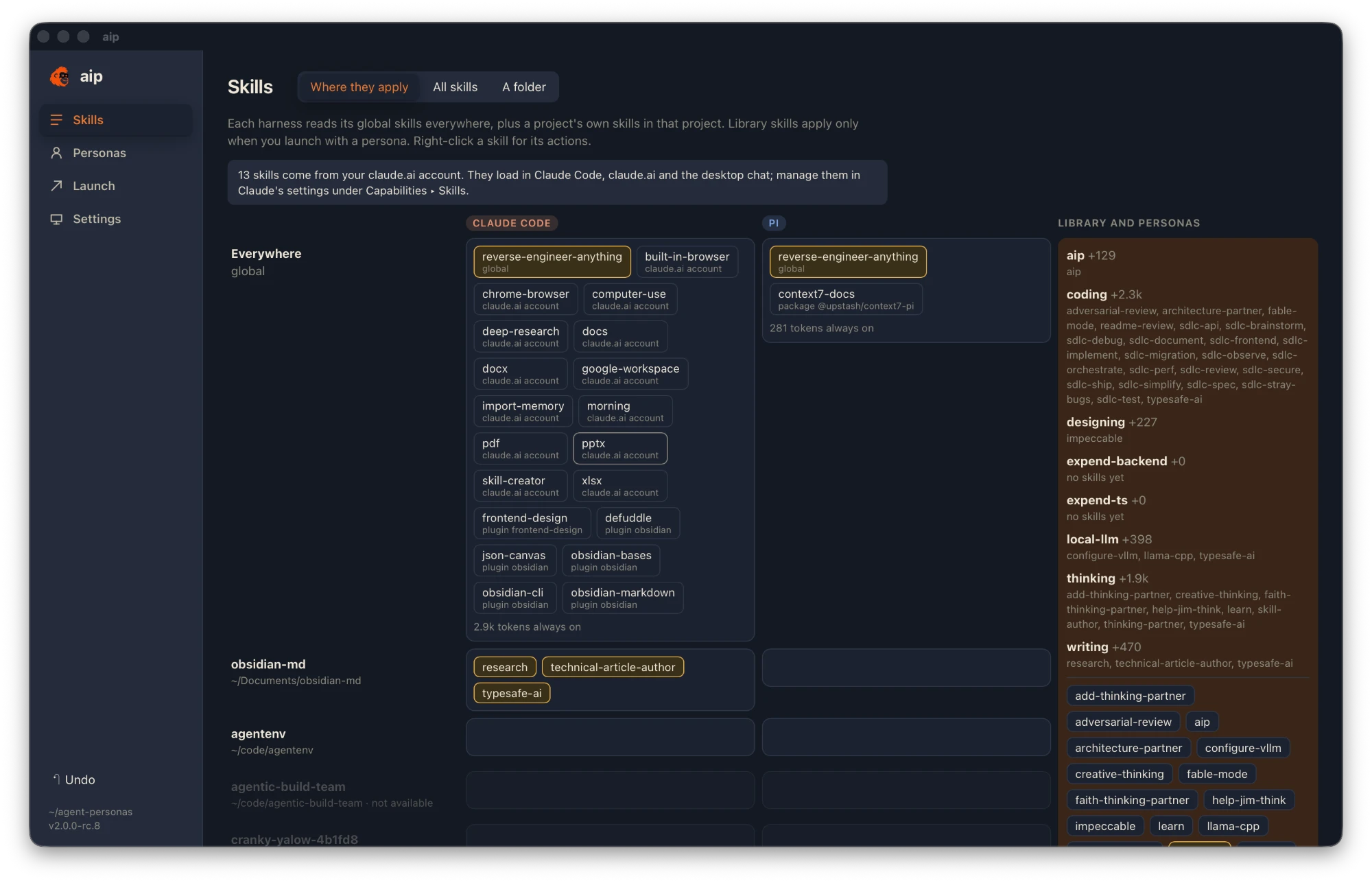
Every skill you install globally costs tokens in every session, whether it’s relevant or not. aip keeps your skills in a library instead, and groups them into personas, one for each kind of work.
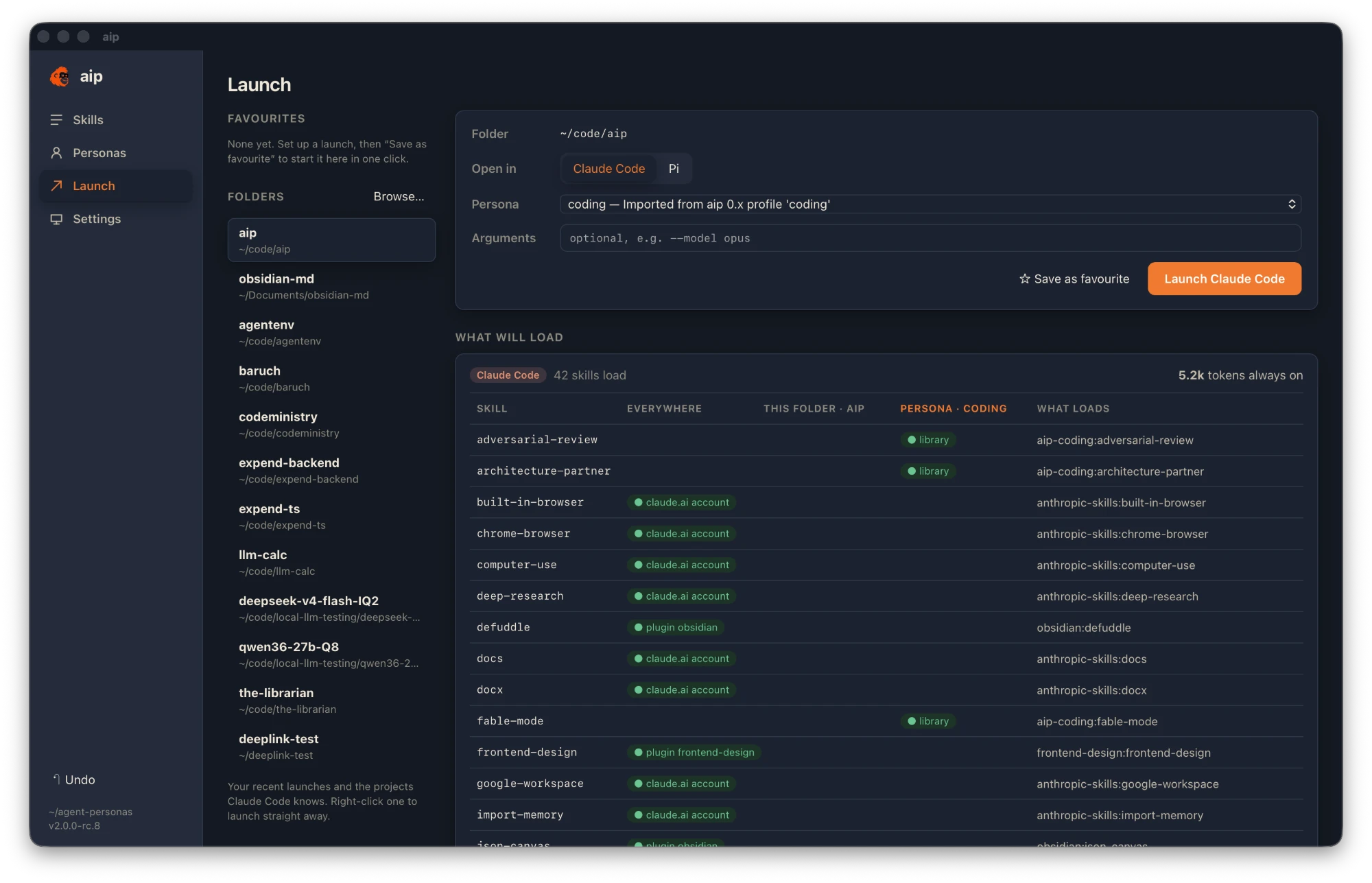
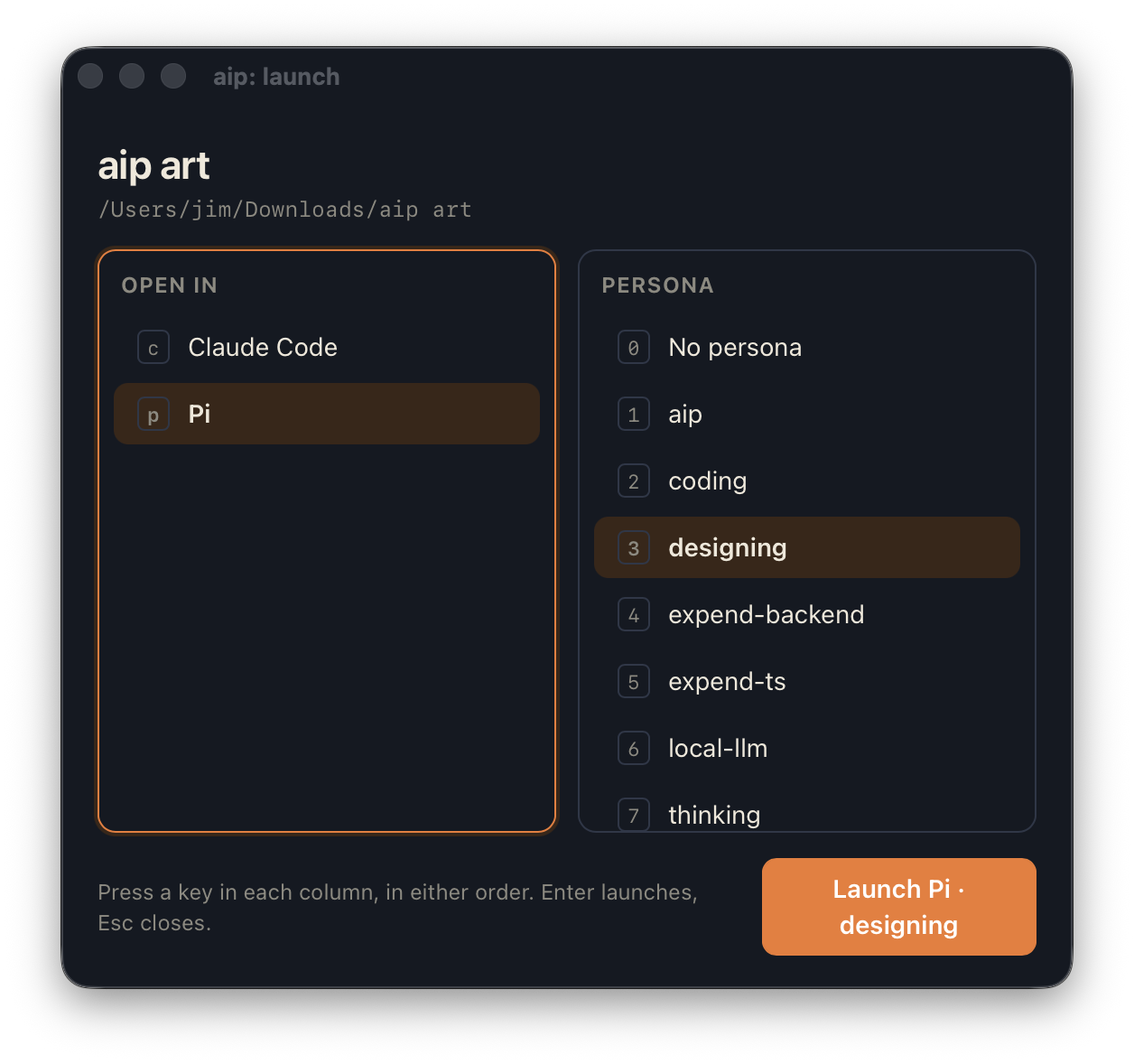
Launch with a persona and its skills are added on top of what the harness already loads, for that session only. Launch without one and nothing changes.



Deliberately uncomplicated
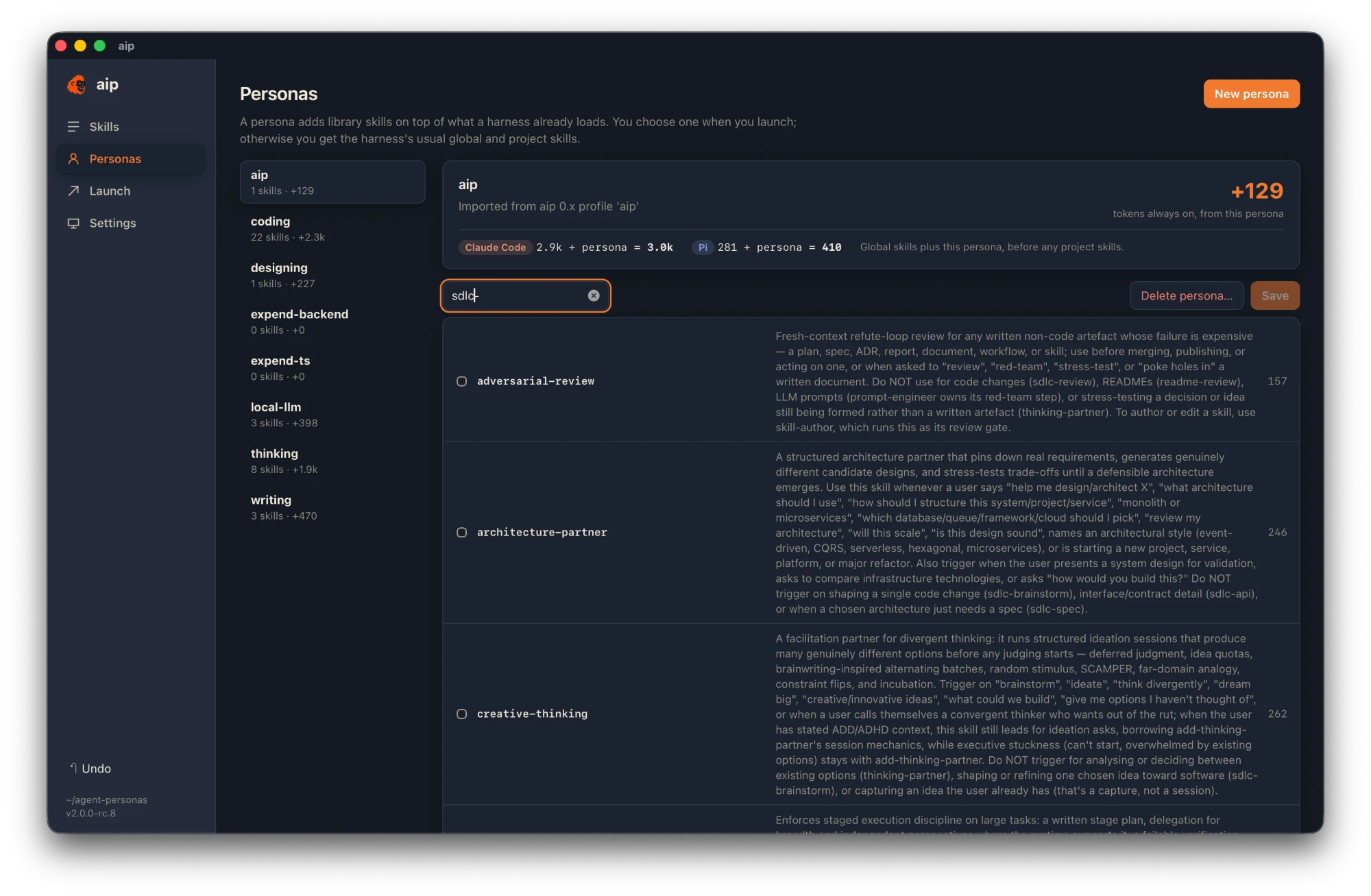
Each skill lives once, in library/skills/. A persona is a short TOML file that names the skills it wants, and can add instructions, MCP servers, Claude Code settings or Pi arguments.
It’s all one ordinary Git repository. aip syncs it across your machines, and you can read and edit every file without aip.
A tour of the app
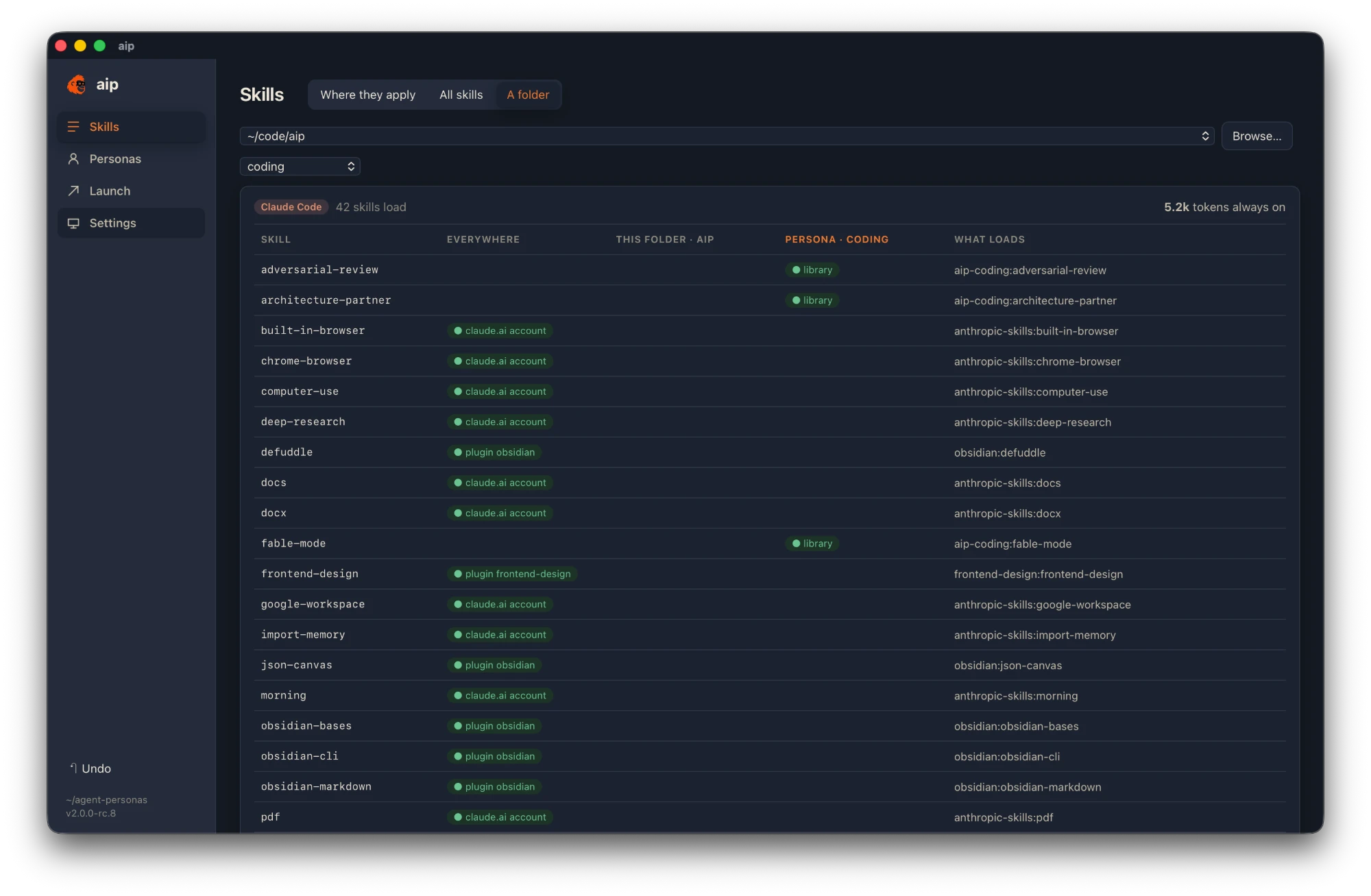
aip works out what every harness will load, where it comes from and what it costs, before you start. Everything the app does, the aip command can do too.
A good first ten minutes
aip runs on macOS 12 or later (Apple silicon and Intel) and on Linux. You need Git, and Claude Code, Pi or both. The app checks for updates when it starts and installs them only when you agree.
Get the .dmg for macOS, or the AppImage, .deb or .rpm for Linux. aip isn’t signed by Apple yet, so the first open on a Mac needs a couple of extra clicks.
On first run, aip offers to start a new personas repository with a few example skills, or clone the one you already have from another machine. Using an older aip with profiles? It offers to convert them into personas.
Set a Git remote in Settings ▸ Sync. aip syncs when it opens and whenever the repository changes. If two machines edit the same file, it shows you both versions side by side and lets you choose.
Prefer the terminal, or setting up a machine without a desktop? Install the aip command from Settings ▸ Command-line tool, or on its own:
curl -fsSL https://github.com/code-ministry-ltd/aip/releases/latest/download/install.sh | shThen work normally
Launch from the app, from a folder’s right-click menu, or from a terminal. The persona’s skills join the session, and your global and project skills load as usual. Close the session and nothing is left behind.
Add the bundled aip skill to a persona and your agent can manage aip for you: it can build personas, install skills from Git and sort out duplicates, and it shows you each change before it makes it.
aip command
~/code/shop
# start Claude Code here with the coder persona
aip launch coder claude

# or Pi, in another folder, in a new terminal
aip launch writer pi --dir ~/notes --terminal

# or a saved favourite
aip launch --favourite shop--yes.aip verify asks the harness what it actually loaded and checks it against the preview.